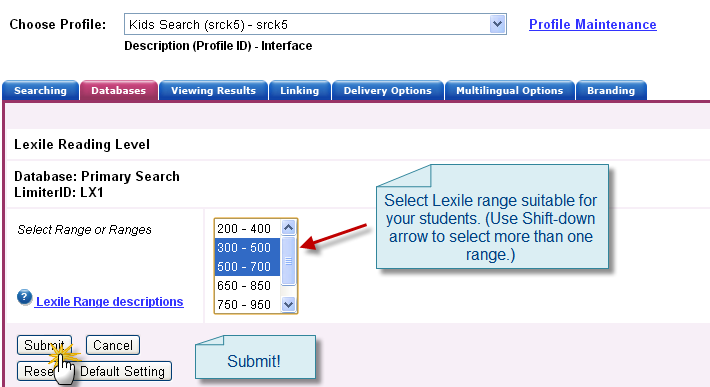
The results from EBSCO’s Kids Search might be pulling up articles that are too advanced for children. Here’s how to change the Lexile Reading Level results for a database.
First, you’ll need to log into the school’s individual EBSCOAdmin account. (Contact me at NHSL to reset your password.)
Once logged in, stay in the “Customize Service” tab (at the very top of the page), and select “Databases” from the tab (near the middle of the page).
From that “Databases” tab, use the drop-down to select Kids Search. Let the page reload…
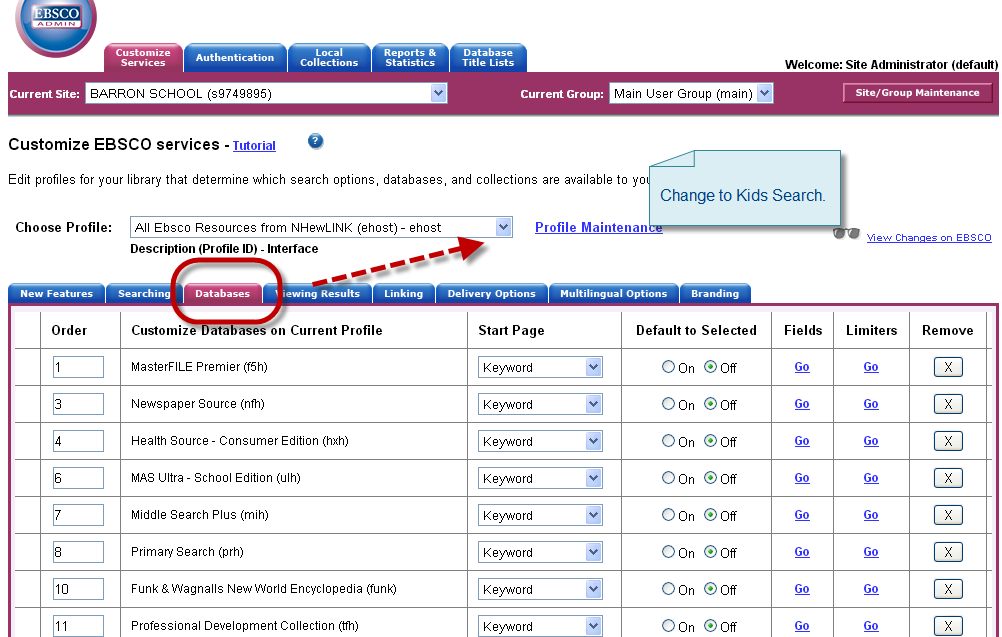
(Kids Search is really an interface populated by multiple EBSCO databases.)
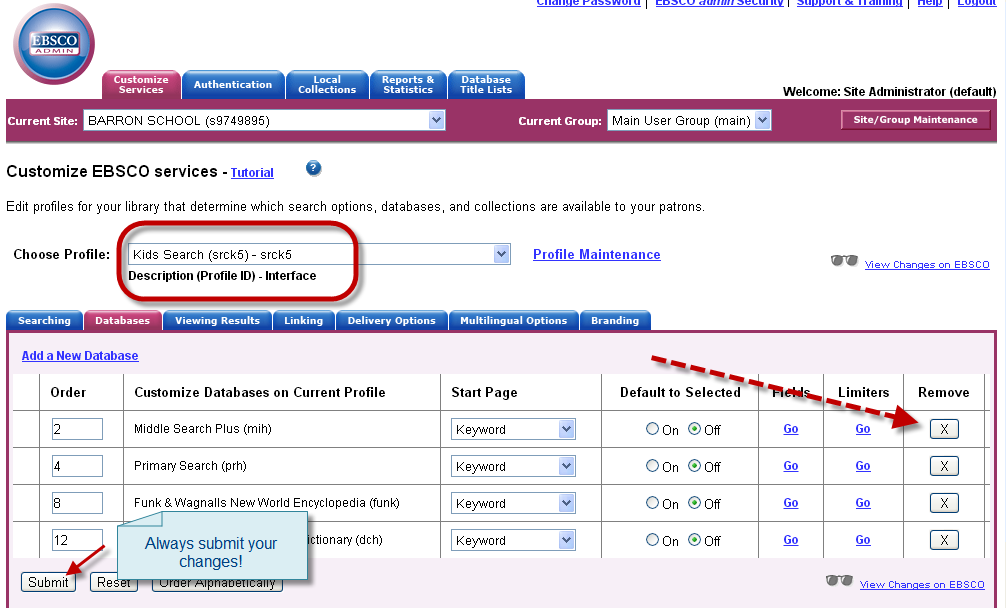
Be default, you’ll probably see four databases listed. For elementary students, consider removing the Middle Search Plus database from the Kids Search interface. Remember to submit your changes with each action.
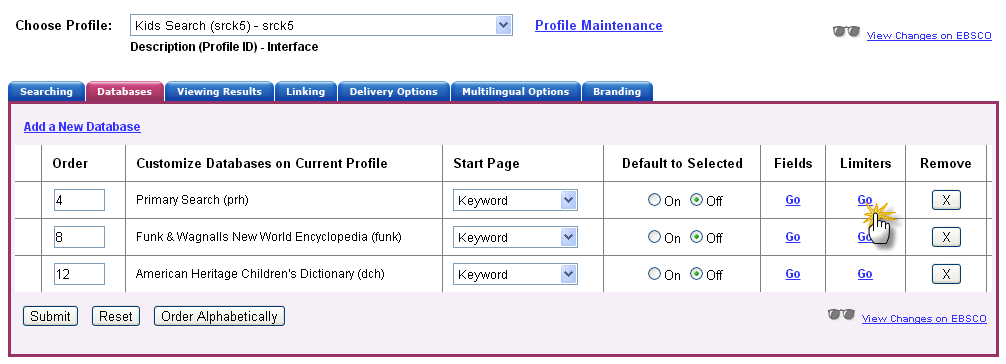
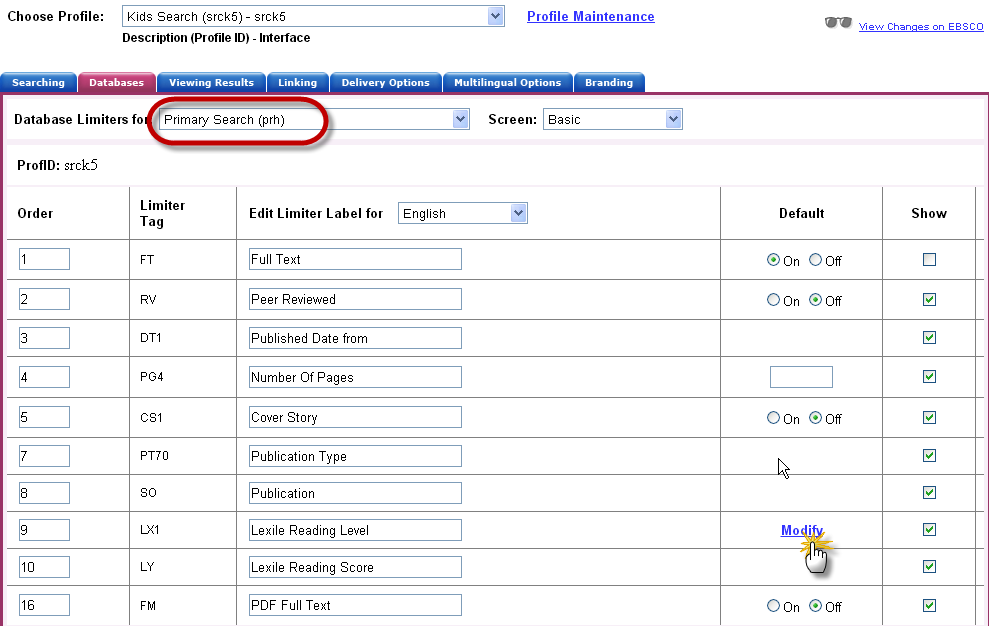
Now click on the “Go” link Primary Search’s “Limiters.”
Find the “Modify” link corresponding to the “Lexile Reading Level.” Click on the “Modify” link.
Select the Lexile Reading Level that best matches your students’ needs. More than one level can be selected by using the “Shift” key and the arrow buttons on the keyboard. Submit your changes.