
This is a blog post documenting my work to try to find a simpler way to deal with the HarperCollins licensed materials…
Update: Thanks to Mindy, I think we have a decent option for identifying titles without any licenses remaining. The Weed/Unweed feature in Content Reserve allows you to search by Holdings with Zero licenses remaining. This shows the titles without holds, not checked out, and not weeded! That’s one step. Now if only we could choose to view holdings with 1 or 2, etc. licenses remaining. Thanks, Mindy!
It begins each week with an email from OverDrive showing the following information:
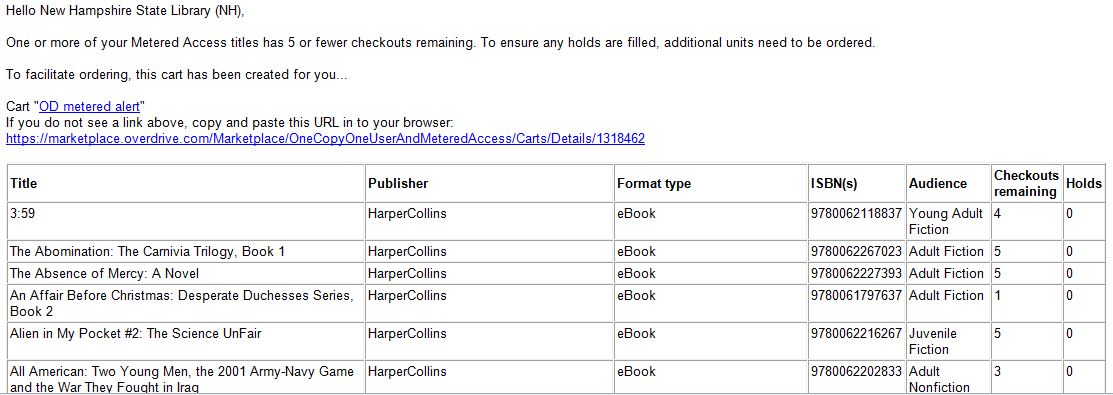
The email has separate, clean columns for consortium holds and licenses remaining, so I copy the table and paste it into an Excel spreadsheet. All looks good — except there are only 410 records. From previous searches of all HC titles with 5 or fewer copies, I know to expect a number closer to 600. What’s missing? Titles with zero licences remaining (weeded or unweeded).
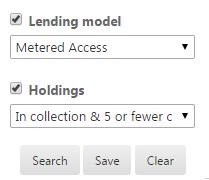
So, instead of relying on this list — or the automatic cart created for us that contains the same information — I run a search to isolate the HC titles with 5 or fewer licenses remaining.
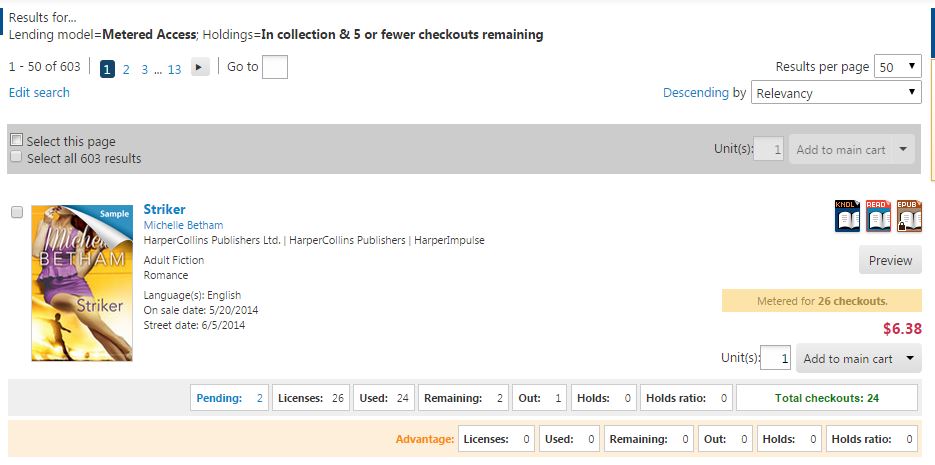
I see that there are 603 results to view over 13 pages. Each page needs to be skimmed for information like holds, licenses remaining, and advantage copies. It’s helpful to sort the list by holds and quickly view the titles that have holds and need repurchasing. But what to do about the 12 pages of results that don’t have holds and contain both weeded and unweeded titles? I added the titles to a new cart to sort the data by licenses remaining or weeded/unweeded titles…
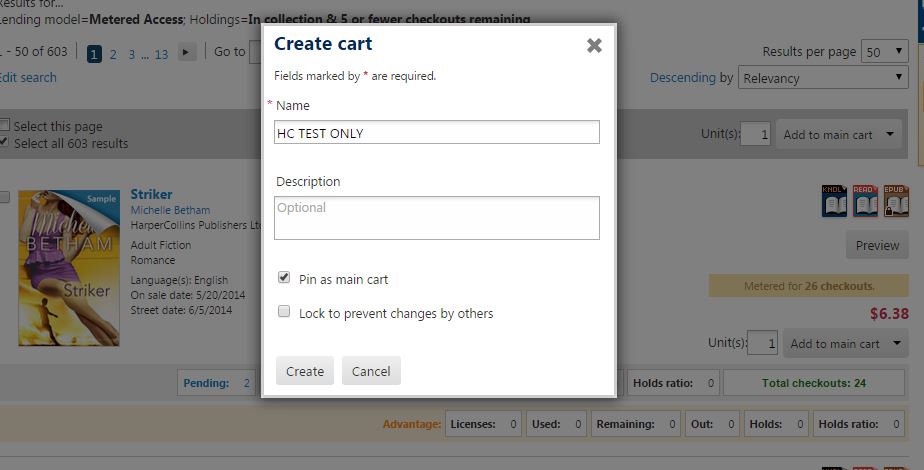
To make a new cart from all results, check “Select all 603 Results” and add to a new cart.
The cart allowed me to sort the columns — great! — but the columns containing holds, licenses purchased, and licenses remaining each contained two pieces of data (results for the consortium and all of the advantage libraries).
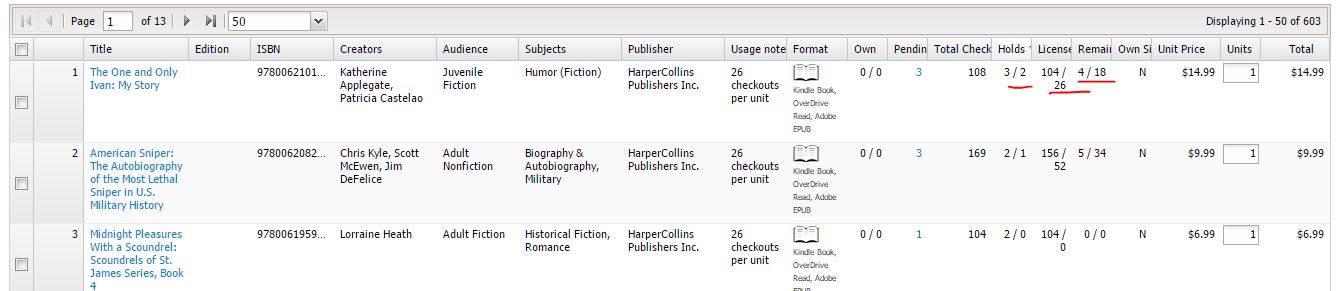
I tried sorting the data by licenses remaining, but unfortunately, the columns containing dual data didn’t sort. Next step was exporting the data to a spreadsheet. Immediately upon exporting the data, I noticed that the columns containing two pieces of data presented a problem. The cells that contained smaller numbers were converted to dates. I tried changing the cell formatting, but nothing I did resolved the problem.
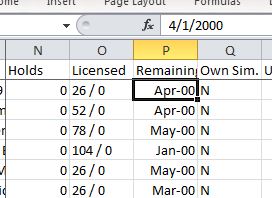
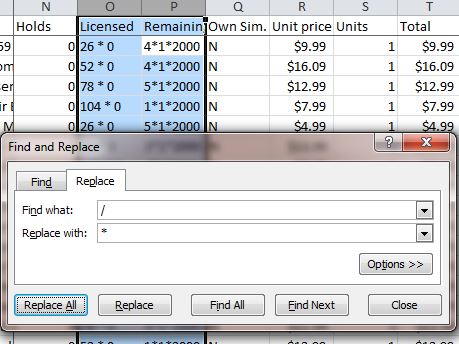
My “solution” is admittedly clunky. I changed cell formatting for these columns from “General” to “Text. Using Find and Replace, I changed the “/” to “*” in an effort to stop the date formatting. This was especially helpful for the “remaining” column.
In order to separate out the consortium numbers from the advantage numbers, I selected a column and ran Text to Columns. It would be very handy if each cell only contained one piece of data. This would allow these columns to be easily sorted within the cart, too.
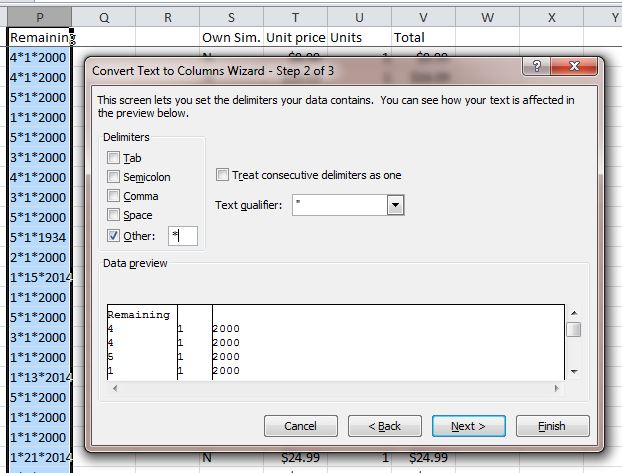
Tip: I had to insert additional columns to the left of each column before running the Text to Columns task.
The results aren’t perfect. I lost the number of remaining licenses for the advantage libraries, but I can live without that number. What I can’t live without are two piece of data that didn’t export from the search result list to the cart or the export: Weeded and Checked out statuses. It would be great to be able to ignore weeded titles — both in the search results and the cart/export — and knowing which titles are checked out (and not able to be weeded) would make the job a lot easier.
I didn’t have any way of getting the checked out status, but I did have a list of titles that we’d weeded. I used that list to identify the weeded titles. I copied and pasted the column of weeded titles into a new column of the spreadsheet. (Note that the titles must be written exactly in both columns!) Then I ran Home >> Conditional Formatting >> Highlight Cell Rules >> Duplicate Values >> Pick a color that suits you. Now sort the title column by font color to isolate the weeded titles. I also added a new column called “Weeded” and marked these titles as weeded so that I could delete the list of weeded titles.
Since the list doesn’t include a checked out status, I’m honestly not sure if it’s easier to sort through the 13 pages of search results or look up each of the 300 titles on the list that could be weeded if they weren’t checked out…
Conclusion: Being able to export the data with separate columns for consortium and advantage numbers, along with checkout and weeded status would significantly cut down on the workload.