
EBSCO’s main menu can look cluttered with all of the additional Explora and NoveList icons. Here are instructions to remove the icons and reorder the page.
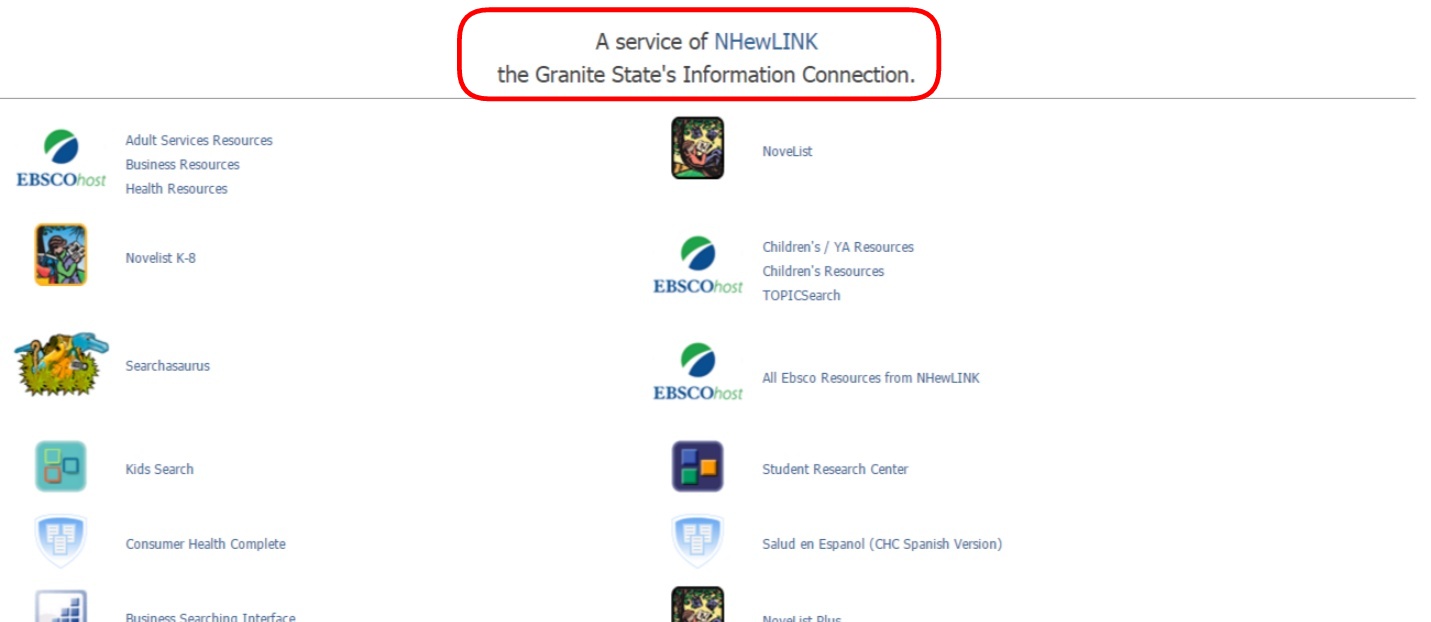
EBSCOAdmin Walk-through
In order to make changes to the main menu, you’ll need to have access to EBSCOAdmin. Your EA account can be set up and/or your password reset by contacting me. Please include your email address and the full name of the library/school.
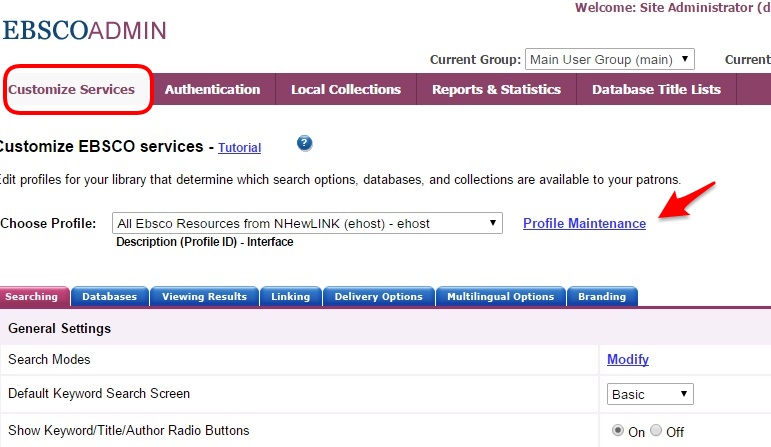
- After logging into EBSCOAdmin, you should already be in “Customize Services,” but if you are not, click on that link.
- Click on “Profile Maintenance.” (It doesn’t matter which profile from the drop-down box is showing.)
Removing Additional Icons/Databases
You might have noticed that there are four icons on the main menu that read “NoveList…”
- NoveList: Fiction (All ages)
- NoveList K-8: Children’s Fiction
- NoveList Plus: Fiction and Nonfiction (All ages)
- NoveList K-8 Plus: Children’s Fiction and Nonfiction
NoveList Plus contains everything — children/adult fiction and nonfiction — that are in the other databases. That one database is all you need to show. However, you might also want to show the NoveList K-8 Plus for its kid-friendly interface.
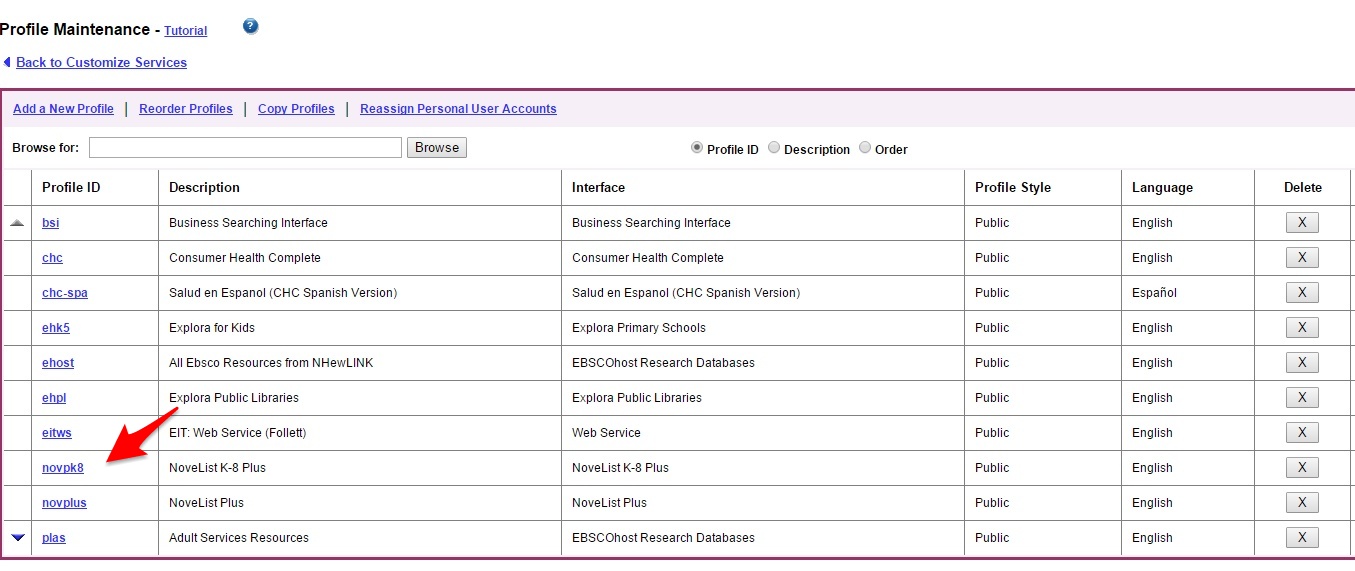
- Delete the NoveList and NoveList K-8 profiles by clicking on the “x” next to each.
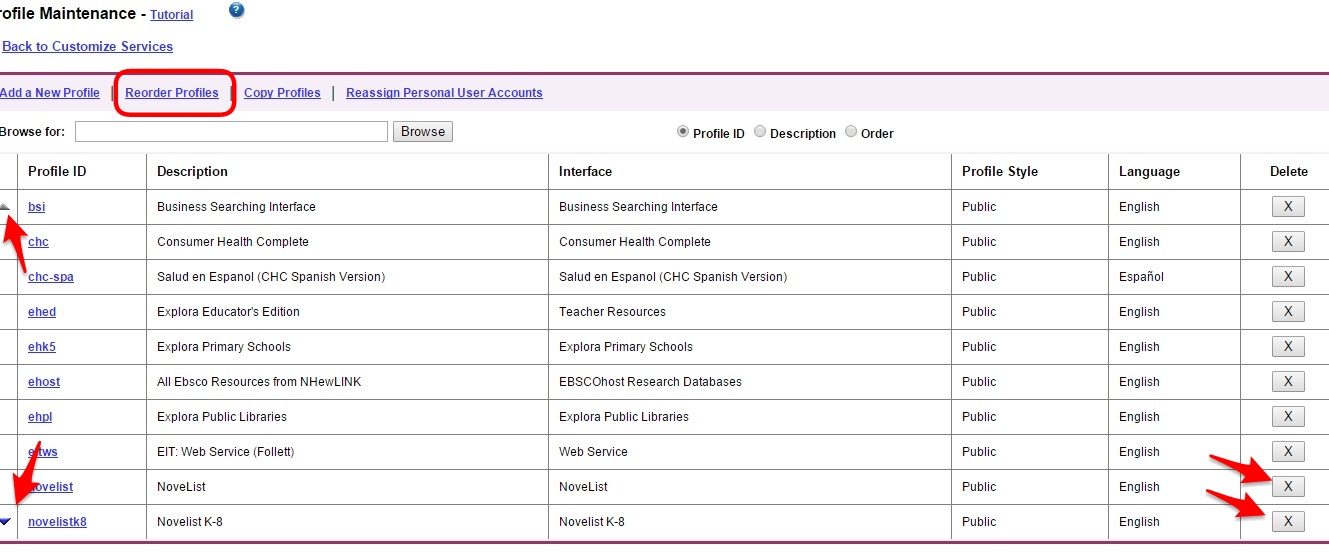
Note that there are more profiles to be viewed by clicking the small arrow buttons on the far left of the screen!
In January, the following databases will be hidden from public view — but will still be searched through the Explora profile. Perhaps now would be a good time to remove them? (Your choice.)
- Kids Search
- Searchasaurus
- Student Research Center
Once you have deleted the desired profiles (databases), reload your public main menu and see if you need to reorder any of the icons.
Reordering the Main Menu
- Click on “Reorder Profiles” link. (See circled link in the above image.)
- See how each profile (database) has a number value assigned? That number can be changed. It is best to start at the end and give that number a large number and then space out the numbers. Trust me, it’s easier than keeping the profiles tightly numbered. I like to space mine out by fives. That way, I know that any number divided by five is already in use. Again, trust me. This will make sense at the end.
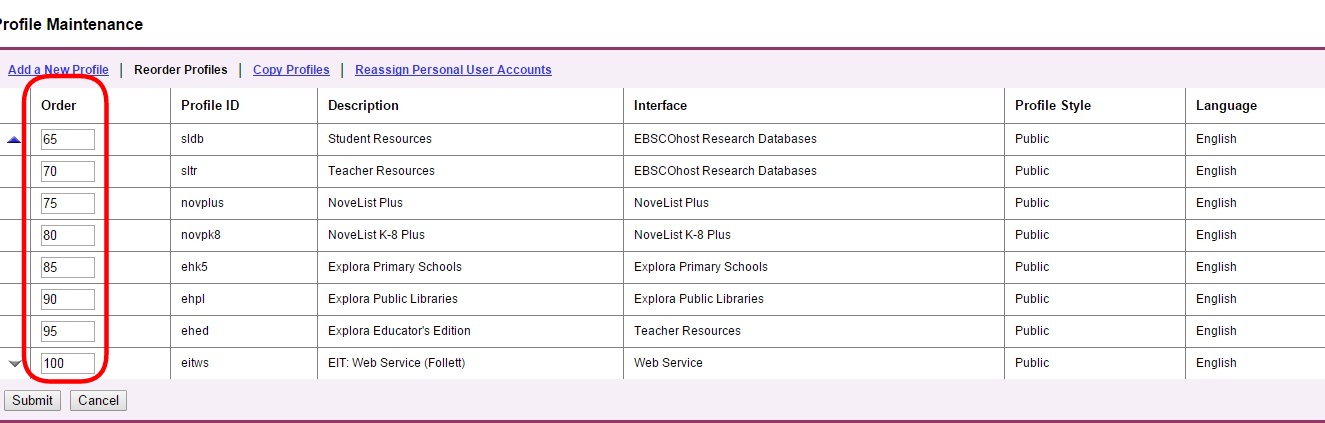
- Press “Submit.”
- You will need to click on the “Reorder Profiles” link again.
- At this time, go through a decide which profiles (databases) should have top billing. I’ve selected “Explora for Public Libraries” for the number one position. Now when I reload the main menu, that database is on the top.
- Continue reordering, submitting the changes, and reloading the main menu to watch your progress.
Renaming EBSCO Profile (Database) Links
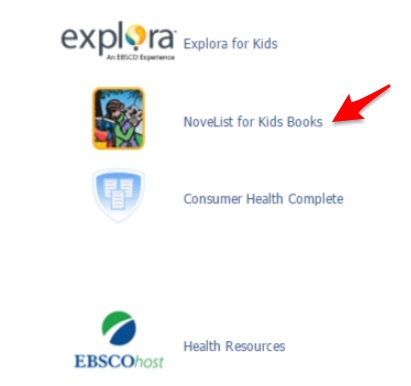
You can change the name of profiles/databases on the main menu to something that makes more sense to your patrons.
Here’s where you need to be to make these changes. (This is the same place for the above steps.)
- Customize Services (tab)
- Profile Maintenance (link)
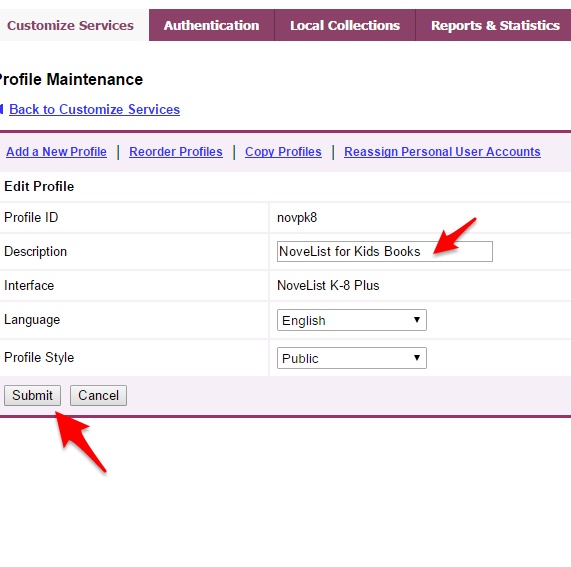
- Click on the Profile ID (link) to change the description.
- Save your changes and refresh the main menu.
Making Changes to a Group of Databases Included in a Profile
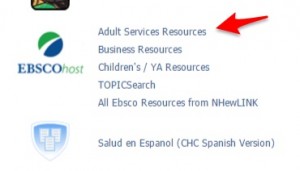
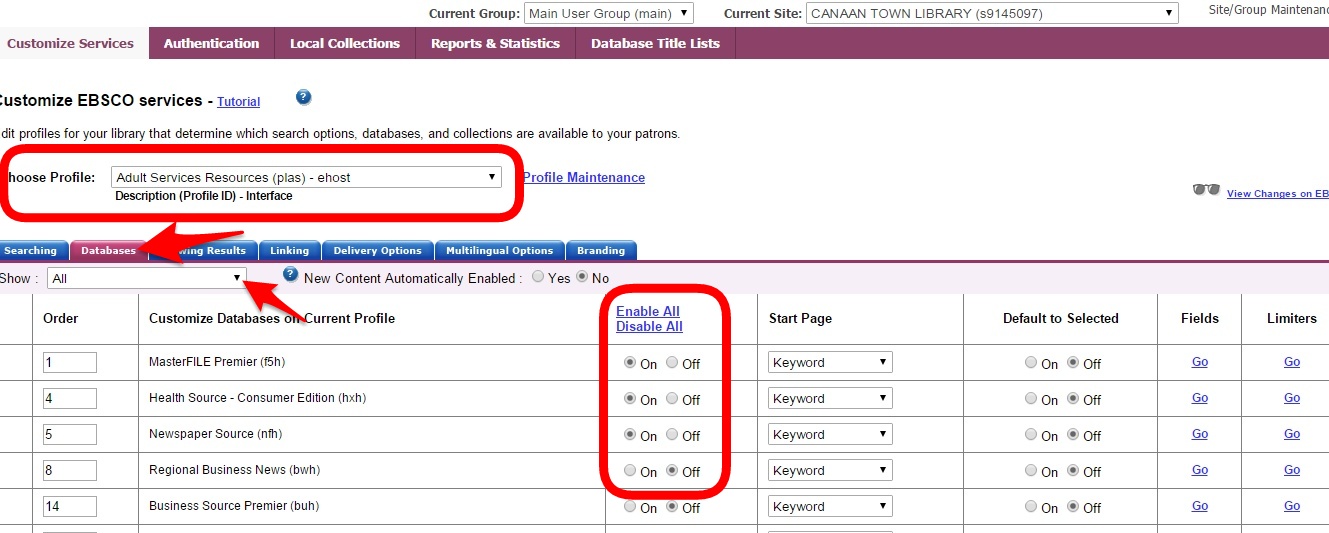
Links like “Adult Services Resources” are profiles that include multiple databases. The databases included in these profiles can be changed — hidden or shown — as desired.
- Customize Services (tab)
- Choose Profile: Adult Services Resources (for this example)
- Click on the “Databases” tab below the Choose Profile drop-down.
- Change the drop-down displaying “Enabled” to “All.”
- Select “On” or “Off” to show or hide the databases.
- It is possible to reorder the database shown within that profile by changing the numbering order for the included databases.
- Submit to save changes.
- Click on “View Changes in EBSCO” to see the changes.
- Note that it can take a minute for these changes to take effect.
Learn more about EBSCOAdmin:
It is possible to create a direct URL into a database like NoveList or Explora — or any of the databases! Learn how.
Many of the EBSCO databases time your patrons out in as little as 15 minutes. Learn how to increase their time limits.
Sometimes a database like Explora for Primary Schools includes resources that are too advanced for children. It is possible to remove databases from a profile. Learn how to remove Middle Search Plus and other advanced databases from Explora for children. Also learn how to change the Lexile levels for the databases searched by children.